
Tool · free
Slow down audio
without changing pitch.
Drop in your MP3, set the speed to 75% and loop that one fill until it sits. Works right in your browser — no download, no account.
What the player does
Practise at your own tempo.
Slower, same pitch
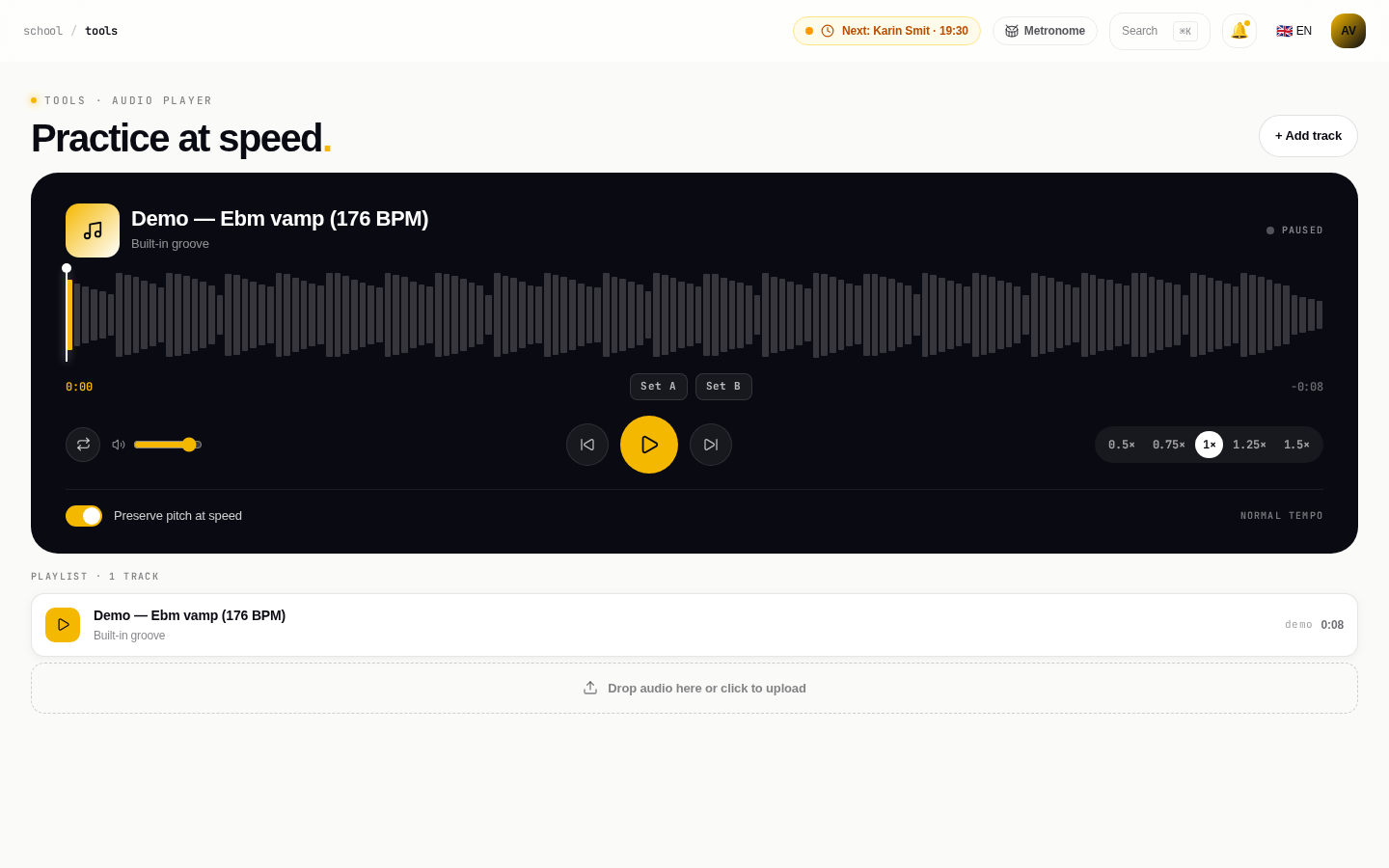
Choose 50%, 75%, 100%, 125% or 150% speed. The pitch stays the same, so you practise in the right key.
A–B loop
Set A at the start and B at the end of that one tricky section. It keeps looping until you have it.
Your file stays with you
Drop an MP3 into the player. It plays in your browser — nothing gets uploaded.
See the waveform
Spot where the breaks and fills are and jump there with one click.
Multiple tracks
Line up a few tracks, for example the original and your version without drums.
In your lessons too
In Musicdott you attach an MP3 from Dropbox or Google Drive to a lesson. Students get the same tempo and loop controls.
How to slow down audio without changing the pitch
- Open the audio player and add a track. Choose an audio file or drag it onto the player. It opens in your browser straight away.
- Pick a speed. Start at 50% or 75%. Pitch lock keeps the song in its original key.
- Mark the tricky part. Click the waveform to jump to the passage, set A at the start and B at the end.
- Loop until it sits. Play along with the loop, then step up the speed until you're back at 100%.
A practice routine that works
Slowing a recording down is only useful if you speed it up again. Loop two to four bars at 50% until you can play them without thinking, move to 75%, and only then go back to full speed. Keep the loop short: drilling the one difficult bar beats playing the whole song badly ten times.
Working out a part by ear? Half speed makes fast fills, guitar licks and vocal runs much easier to follow. Use the ±5 second buttons to step back a moment without losing your loop.
For music teachers
In Musicdott you can add audio to a lesson by pasting a Dropbox or Google Drive share link or a direct MP3 link, and students practise at home with the same speed and loop controls. Combine it with the online metronomeand log practice through the practice tracking app. See everything on the music lesson platformpage, or for drummers, our software for drum schools.
Frequently asked questions
Does slowing down change the pitch?+
No. Pitch lock is on by default, so a song at 75% speed stays in the same key. If you want the old tape effect where slower also means lower, you can switch pitch lock off.
Which speeds can I choose?+
Five speeds: 50%, 75%, 100%, 125% and 150%. Half speed is ideal for working out a fast passage note by note; 125% and 150% are useful for checking that you can play it faster than you need to.
Is my audio file uploaded anywhere?+
No. The file is opened and played in your own browser and is never sent to a server. Tracks are not stored either, so they disappear when you reload the page.
Which file types work?+
Any audio file your browser can play, such as MP3, WAV or M4A. You can choose a file or drag it onto the player.
Can I slow down a YouTube video?+
Not with this tool. It plays audio files from your own device, such as a track you bought or a practice version you exported yourself.
How do I loop just one section?+
Play to the start of the passage and set A, play to the end and set B. The player then repeats that section until you clear the loop.
Teacher? Put your MP3s in the lesson.
A Moises version without drums or a slowed-down backing track: paste the Dropbox or Drive link into a lesson and your student practises with it at home, with the same tempo and loop controls.
Try Musicdott for free